
Workflows
A workflow defines a multi-stage reconstruction pipeline: which backends to use, which modules to call, and what parameters are available. Workflows are stored as YAML files.
Workflow Browser
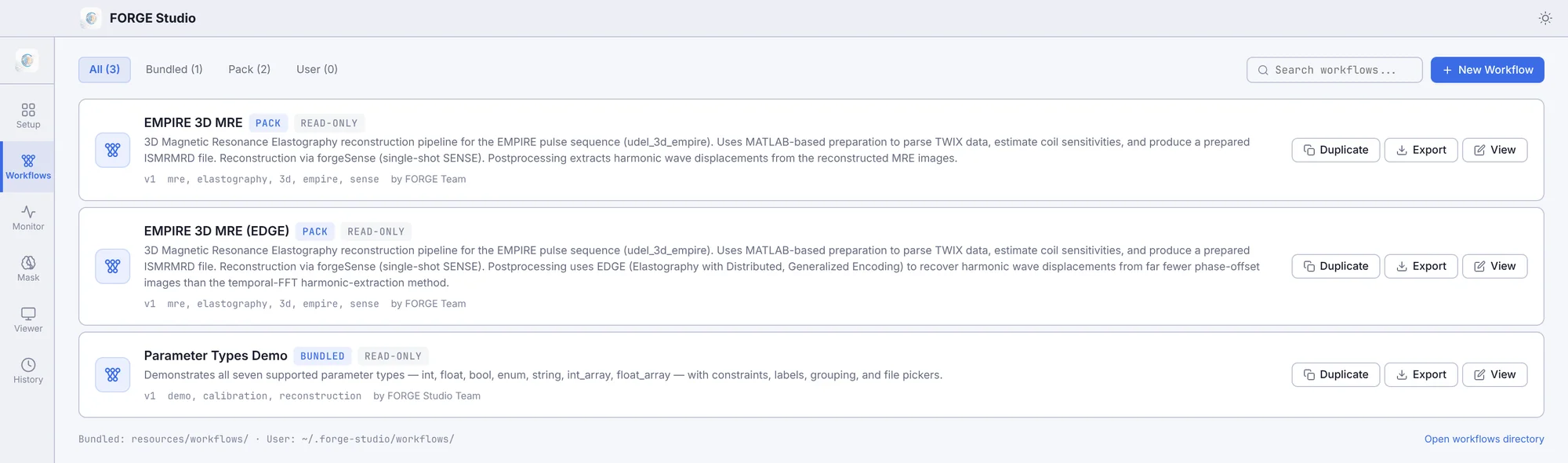
Open the Workflows tab to see all available workflows in a card grid. Filter by:
- All / Bundled / User tabs
- Tag chips (e.g.
cs,3d,cartesian) - Search box (matches name, description, tags)
Click a workflow card to preview its stages. Click Edit to open the full editor.
Workflow Locations
| Location | Access |
|---|---|
resources/workflows/ (app bundle) | Read-only bundled workflows |
~/.forge-studio/workflows/ | Your user workflows — read/write |
Workflow Editor
The editor is a full-screen modal with three panels:
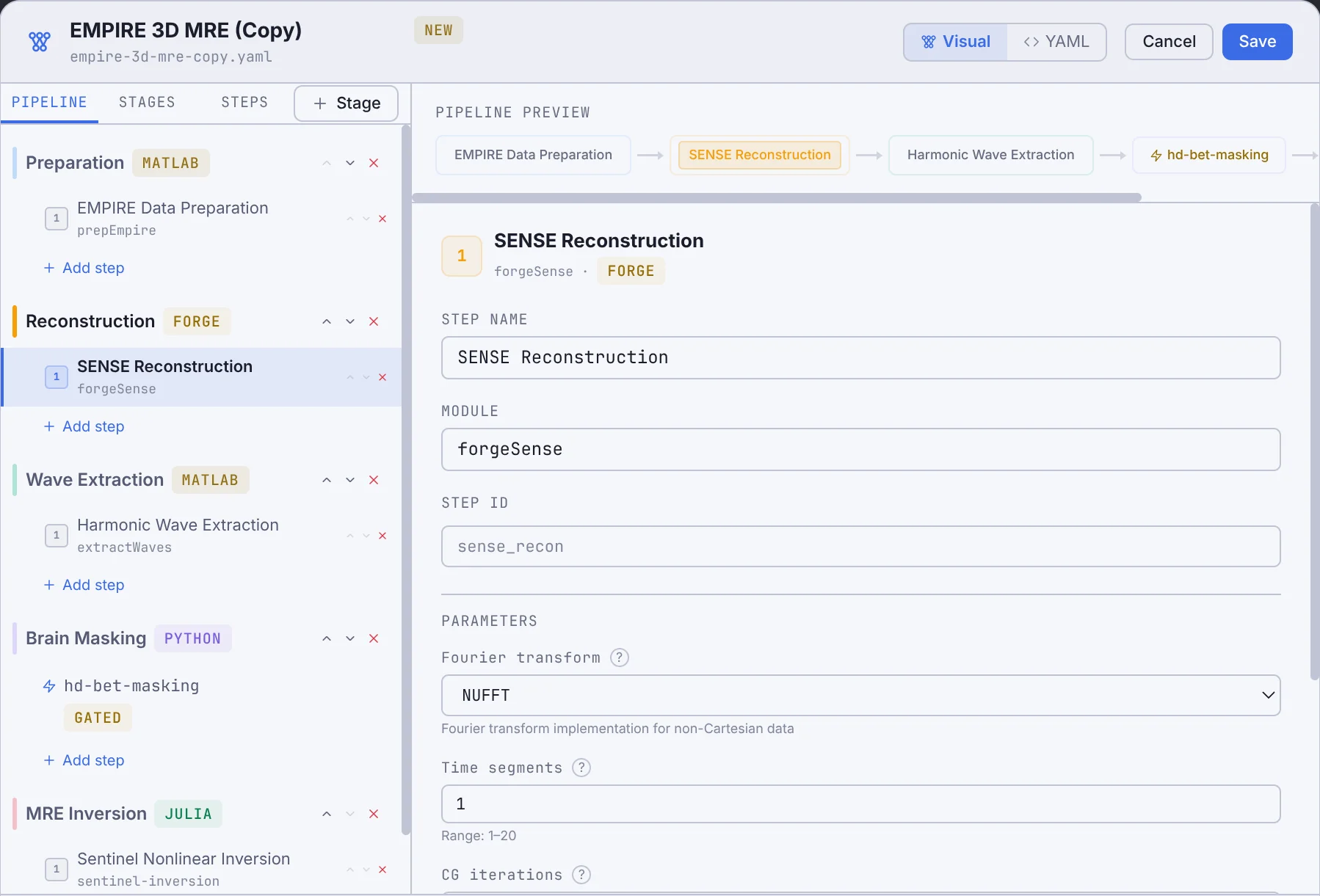
Left — Stage/Step Tree
Shows the pipeline as a collapsible tree:
- Pipeline tab — the ordered list of stages and their steps.
- Library tab — step cards from the Palette that can be dragged into the pipeline.
Stage operations
- Add stage — click
+in the header or drag a stage card from the Palette. - Remove stage — right-click → Remove.
- Reorder — drag to change order.
- Save to Palette — right-click → Save to Palette to create a reusable card.
Step operations
- Add step — click
+inside a stage row. - Remove step — right-click → Remove.
- Reorder — drag within the same stage.
- Enable / Disable — toggle the checkbox next to any step.
Centre — Step Inspector
When a step is selected, the inspector shows:
- Module — the function or file name called by the backend.
- Parameters — all declared params with type-appropriate editors.
- Save stage to Palette button.
Parameter editors by type:
| Type | UI |
|---|---|
int / float | Number input with min/max validation |
bool | Checkbox |
enum | Dropdown |
string | Text input, with Browse button if file_picker: true |
int_array / float_array | Individual inputs (length ≤ 6) or comma-separated text |
Right — Validation / YAML
Switch between Visual and YAML mode using the tabs in the editor header:
- Visual — parameter editor as above.
- YAML — raw YAML source with syntax highlighting. Edits here sync back to the visual view.
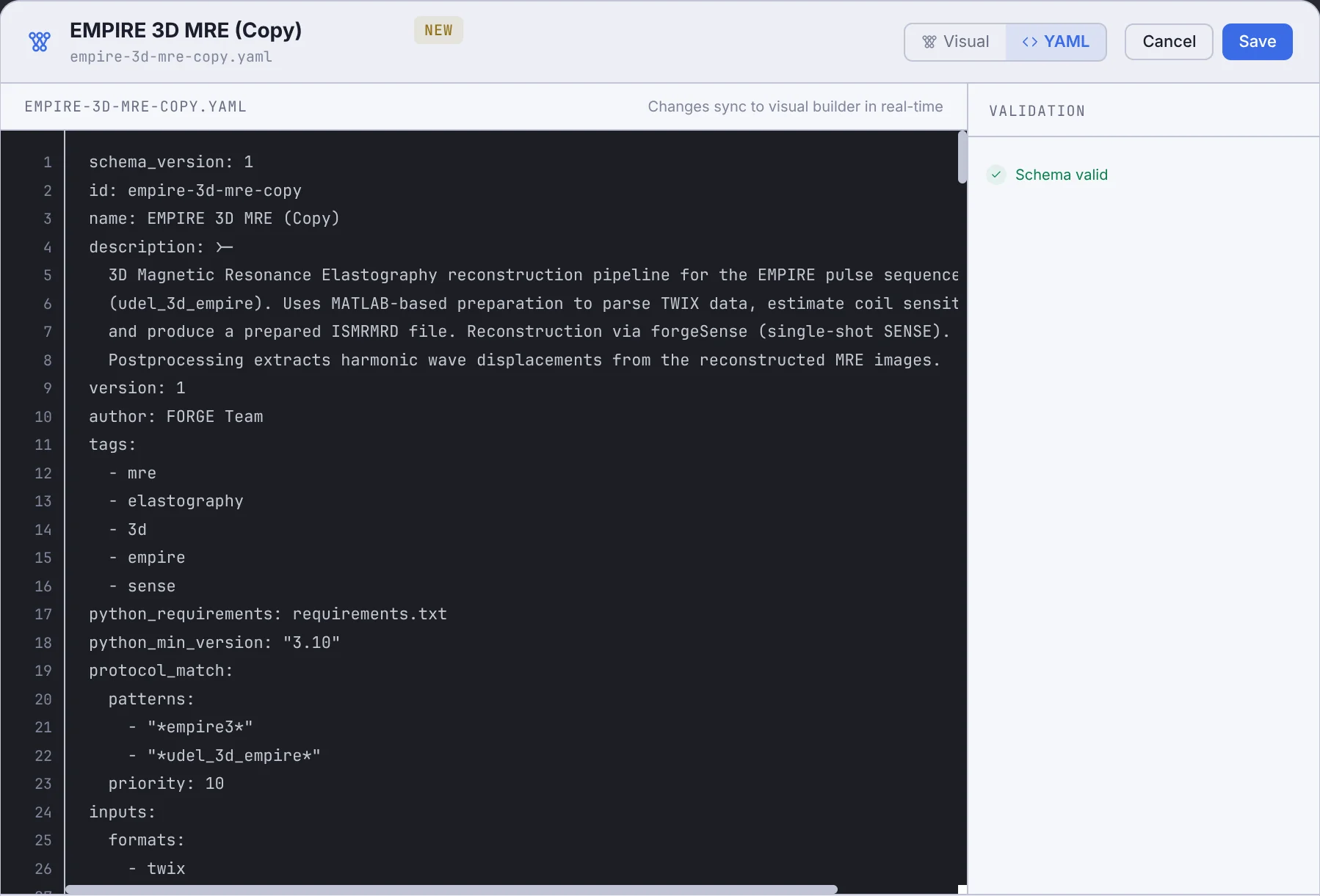
The Validation panel (always visible at the bottom) shows errors and warnings from the JSON Schema validator in real time.
Creating a New Workflow
- Click New Workflow in the Workflows tab header.
- Give it a name and optional description.
- Add stages using the
+button or drag cards from the Palette. - Configure parameters in the Step Inspector.
- Click Save (or Save As to save a copy).
Editing a Bundled Workflow
Bundled workflows are read-only. To customise one:
- Open it in the editor.
- Click Duplicate & Save — creates an editable copy in
~/.forge-studio/workflows/.
Protocol Matching
Workflows can declare patterns to auto-select when a matching file is loaded:
protocol_match:
  patterns:
    - ".*CS_SENSE.*"
    - ".*3D_VIBE.*"
  platform: [VE, XA]   # optional — restrict to specific Siemens platforms
  priority: 10          # higher wins when multiple workflows match
Importing / Exporting
Yarra .mode files
FORGE Studio can round-trip Yarra mode files:
- Import — click Import Yarra Mode in the Workflows tab. Converts the INI file to a workflow definition.
- Export — in the editor, click Export → Yarra Mode. Produces a
.modeINI file for scanner integration.
YAML files
User workflow files are plain YAML at ~/.forge-studio/workflows/<id>.yaml. You can edit them directly in any text editor, share them via git, or drop new .yaml files into the folder (they appear after reopening the Workflows tab).
See Workflow YAML Reference → for the full schema.